
You have now started to run git commands but how do you ensure git is seeing exactly what you think it is seeing? Use git status

When you want to find the state of your git files or repository, make use of git status command. Essentially when you are first starting out with git, use git status command as a habit. It will go a long way to help you learn git and to keep a tab on the state of your files all the time.
How to use git status command?
Let us understand git status command by running it on the WordPress project we cloned in the git clone lesson.
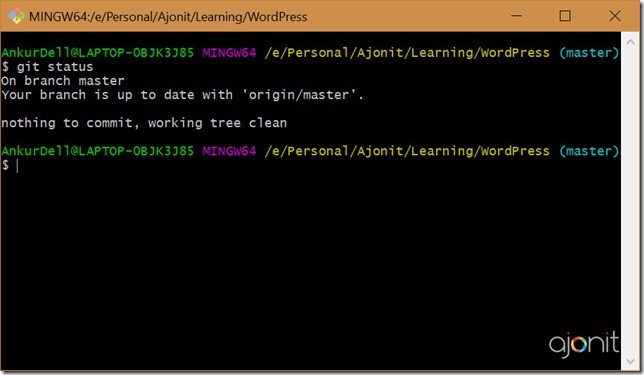
When you haven’t changed anything inside a project and you type git status, the output screen would be
$ git status
On branch master
Your branch is up to date with 'origin/master'.

nothing to commit, working tree clean</pre>
<p>Explanation of Git Status Output</p>
<ol>
<li><code class="" data-line="">On branch master – It means that Git is on the master branch. (the default branch)
Your branch is up-to-date with 'origin/master'. – Project is in sync with the one we cloned from.nothing to commit, working directory clean – There are no pending changes.Now let us make a simple change in one of the files. I would go inside WordPress/license.txt file, add some text inside and save it. Now if I run the git status command, this is how the output screen would look like.
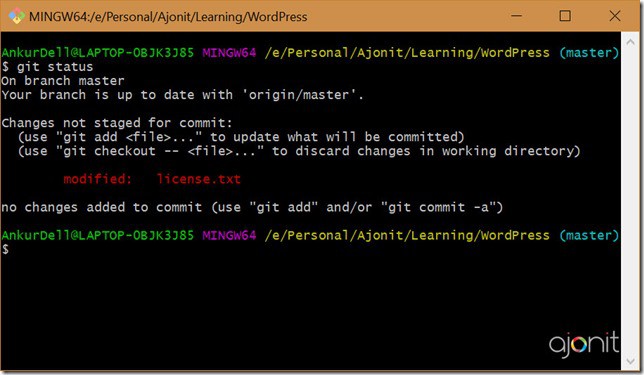
$ git status On branch master Your branch is up to date with 'origin/master'. Changes not staged for commit: (use "git add <file>..." to update what will be committed) (use "git checkout -- <file>..." to discard changes in working directory) modified: license.txt no changes added to commit (use "git add" and/or "git commit -a")</pre> <p>Before we discuss the output above, let us learn the complete git process when a file moves from a working directory to a remote repo.</p> <p><img style="background-image: none; float: none; padding-top: 0px; padding-left: 0px; margin-left: auto; display: block; padding-right: 0px; margin-right: auto; border: 0px;" title="git-commit-process-complete" src="https://www.ajonit.com/wp-content/uploads/2018/09/git-commit-process-complete.jpg" alt="git-commit-process-complete" width="620" height="852" border="0" /></p> <p>The <code class="" data-line="">git commit command is used to save changes to the local repo. The process occurs in two steps. Usinggit add, the files move from working directory to a staging area. Then usinggit commit, the files move from staging area to the local repo. (When we say move, the files doesn’t physically move to respective stages. It is just that there state changes with various commands.)Going back to the earlier
git statusoutput.
Changes not staged for commit: The output tells us that that there is a file which has changed but the changes have not moved to staging yet. (Then it provides a tip which says that using git add we can move a file to staging area)
no changes added to commit (use "git add" and/or "git commit -a"): The changes have not been added to the local repo. This is obvious since we haven’t moved changes to staging yet.